
What is Smartschool?
Smartschool is the school portal used by virtually every secondary school in Flanders and a large number of schools in the Netherlands. Each school runs its own instance at yourschool.smartschool.be, where teachers publish lessons, tests, homework, results, messages and the school agenda.
Skoolskill connects to that agenda through Smartschool’s official iCal export. You generate a personal calendar link in Smartschool, paste it into Skoolskill once, and from then on every test (toets, examen) and task (taak, opdracht) appears in your Skoolskill planner automatically. The feed re-syncs every hour — no password, no browser extension, no manual copy-paste.
Heads up. The iCal link is private. Anyone with that URL can read your agenda, so don’t share it publicly. You can revoke it at any time by deleting the export profile in Smartschool.
Before you start
You’ll need:
- A Smartschool account at your school (any student account works).
- A Skoolskill account — create one for free if you don’t have one yet.
- About 2 minutes.
The flow has two halves: first you generate an iCal link in Smartschool, then you paste it into Skoolskill.
Part 1 — Generate the iCal link in Smartschool
Step 1. Open the Planner
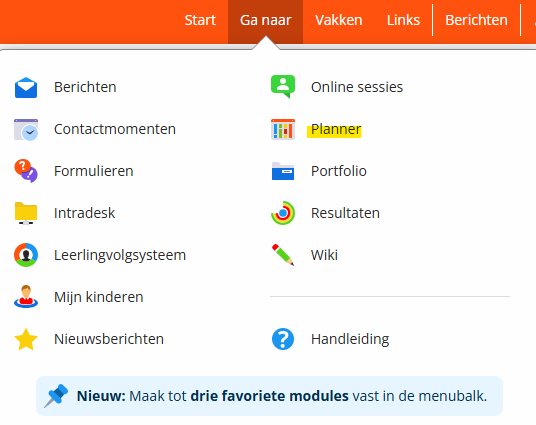
Log in to Smartschool, click Ga naar in the top menu and choose Planner.
Step 2. Open the Planner settings
Inside the Planner, look at the right-hand action bar. Click the gear / settings icon (the one highlighted in yellow below).

Step 3. Open “Planner delen (ICS-export)”
You’re now on the Planner › Beheer screen. Click the Planner delen (ICS-export) card on the right.
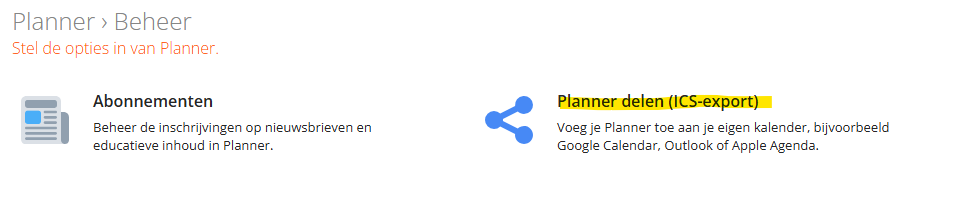
Don’t see this option? Your school has disabled iCal export for students. Ask your ICT coordinator to enable it — Skoolskill does not support password-based logins to Smartschool.
Step 4. Create a profile and pick what to share
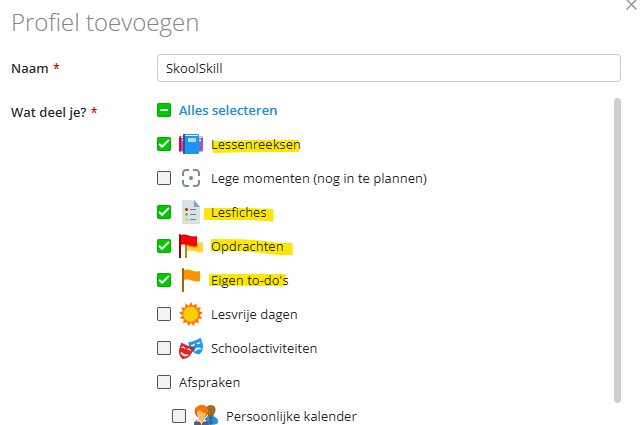
Click Profiel toevoegen (Add profile). Give it a clear name like SkoolSkill so you recognise it later, and tick:
- Lessenreeksen
- Lesfiches
- Opdrachten
- Eigen to-do’s
Leave Lege momenten unchecked — those are empty timetable slots and would only clutter your planner. Holidays and personal entries can stay off too.
Save the profile. Smartschool now shows a personal iCal/ICS link that looks like:
https://yourschool.smartschool.be/planner/sync/ics/<uuid>/<uuid>Copy that link to your clipboard.
Part 2 — Paste the link into Skoolskill
Step 5. Open Skoolskill Settings
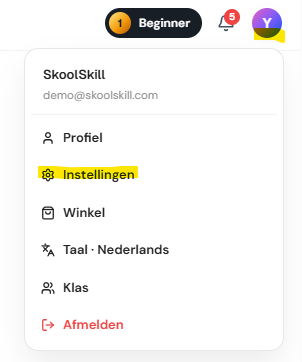
In Skoolskill, click your avatar at the top right and choose Settings (Instellingen).
Step 6. Find the Smartschool integration
Scroll down to Integrations. You’ll see a card titled Smartschool — Belgian school portal. Open the “Where do I find that link?” drop-down if you need a quick reminder of the steps above.
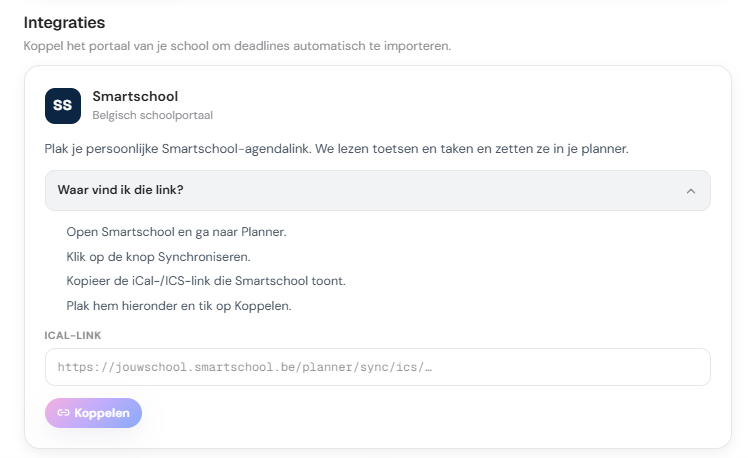
Step 7. Paste the link and connect
Paste the iCal link into the ICAL-LINK field and click Connect (Koppelen).

Skoolskill validates the URL and runs the first sync immediately — within a few seconds you’ll see a green confirmation showing how many deadlines were imported, and your tests and tasks appear in the planner.
From now on Skoolskill re-syncs every hour. You can also hit Sync now at any time, or Disconnect to remove the link.
What happens after you connect
- Tests (
Toets,Kleine toets,Examen) become test deadlines in your planner. - Tasks (
Taak,Opdracht) become homework deadlines. - All-day items are placed at the end of the day so they sort logically next to timed items.
- Empty timetable slots, lesson plans, holidays and personal calendar entries are filtered out.
- Duplicates are detected by subject + title + day, so a task that Smartschool moves between adjacent slots won’t appear twice.
Once your deadlines are in Skoolskill, the AI builds a daily study plan around them: it spreads the work, suggests what to revise first based on weak spots, and reminds you on time. That’s the whole point of linking the two — Smartschool tells you what is coming, Skoolskill tells you when and how to study for it.
Open Skoolskill — free to start, no credit card.